
Technology
When a Website Will Not Load: A Plain-Language Troubleshooting Guide
Blank pages, endless spinners and odd error messages usually have ordinary causes. This guide walks through practical steps, from refreshing and clearing cache to checking connections, that fix most loading problems.


Latest stories
View all
Technology
Flying Cars Are Getting Real: Where Air Taxis Stand in October 2026, and the Math That Lifts Them
Joby flew real routes over Dallas–Fort Worth in September, Archer named a Texas network in October and BETA joined seven of eight federal pilot programs. None is FAA-certified yet. Here is where things stand, with the four equations that decide whether a flying car works.
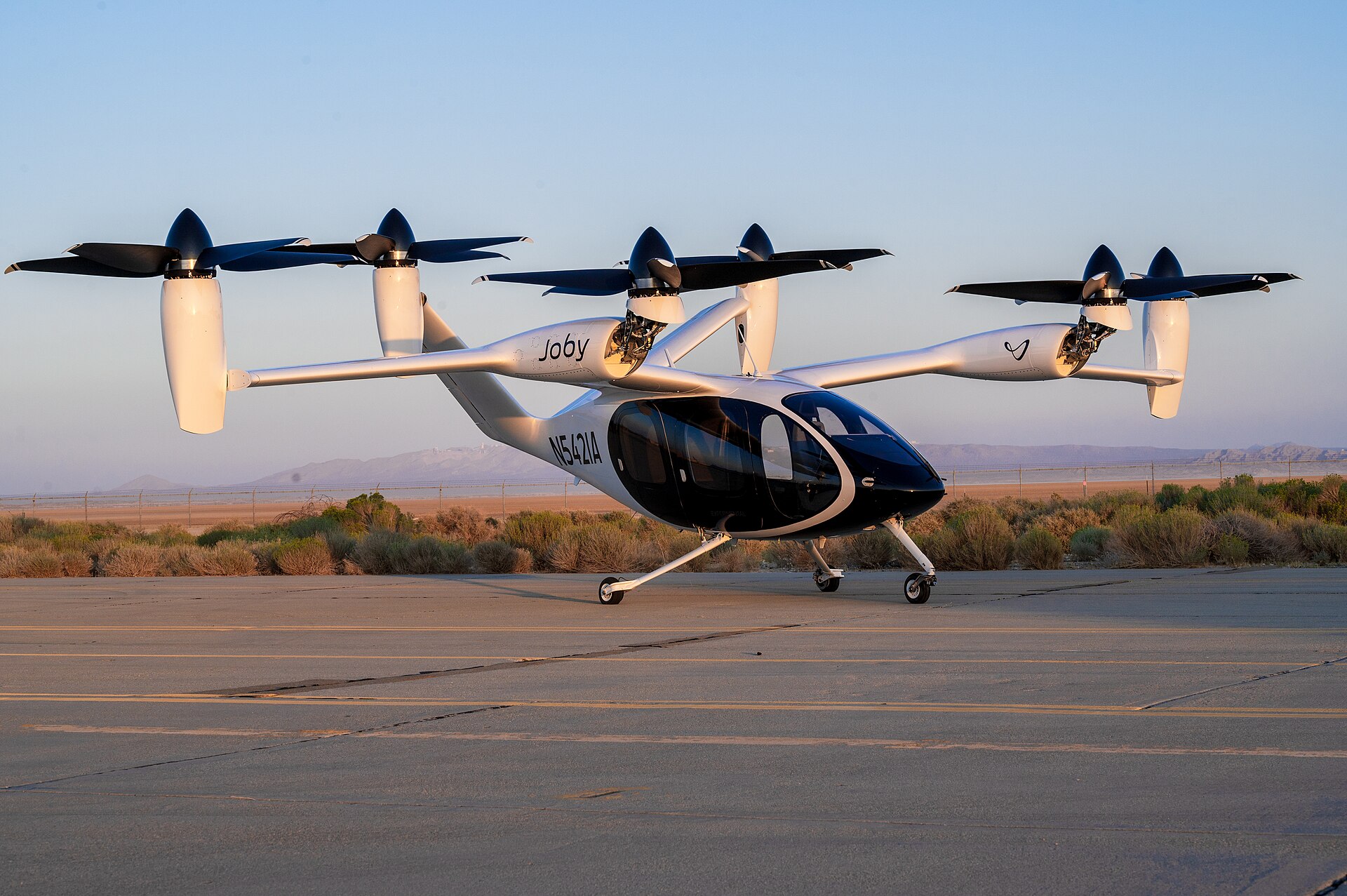
Electric air taxis are no longer only renderings. In September 2026, an electric air taxi flew real routes over Dallas–Fort Worth under a federal pilot program. Three U.S. developers, Joby Aviation, Archer Aviation and BETA Technologies, are flying aircraft designed for commercial service. None has an FAA type certificate for them yet. Here is where things stand, what the companies themselves have said, and the physics and math that decide whether a “flying car” can work.
What actually happened in 2026
- A federal pilot program started. The U.S. Department of Transportation and the FAA picked the first participants in the eVTOL Integration Pilot Program (eIPP) in March 2026. The FAA lists eight participating governments: the Florida, Utah, Texas, North Carolina and Pennsylvania transportation departments, Louisiana DOTD, the City of Albuquerque and the Port Authority of New York and New Jersey. The FAA says the program “does not bypass certification” and is expected to run for three years after the first project becomes operational.
- Joby Aviation flew in North Texas. From September 10 to 14, 2026, Joby flew a week-long campaign around Dallas–Fort Worth under TxDOT’s Project Nexus. The flights covered Perot Field Fort Worth Alliance Airport, a landing inside DFW Airport’s controlled airspace, a round trip to Arlington and the planned route to Toyota Motor North America’s Plano campus (Hillwood press release, Sept. 10, 2026).
- Joby is in the last certification stage. Joby’s first FAA-conforming aircraft, registration N547JX, began flight testing in March 2026 (Joby press release, March 11, 2026). Joby’s Q2 2026 shareholder letter (Aug. 5, 2026) says the company has reached “the fifth and final stage” of FAA type certification. It reported $38.6 million in quarterly revenue and a $245.4 million net loss.
- Archer named its Texas network. On October 23, 2026, Archer Aviation said it plans air taxi service linking the Dallas–Fort Worth, Houston and Austin areas. It would use its four-passenger Midnight aircraft on flights of 10 to 20 minutes. Archer did not give a start date, and Midnight has not received FAA type certification (AIAA, Oct. 23, 2026).
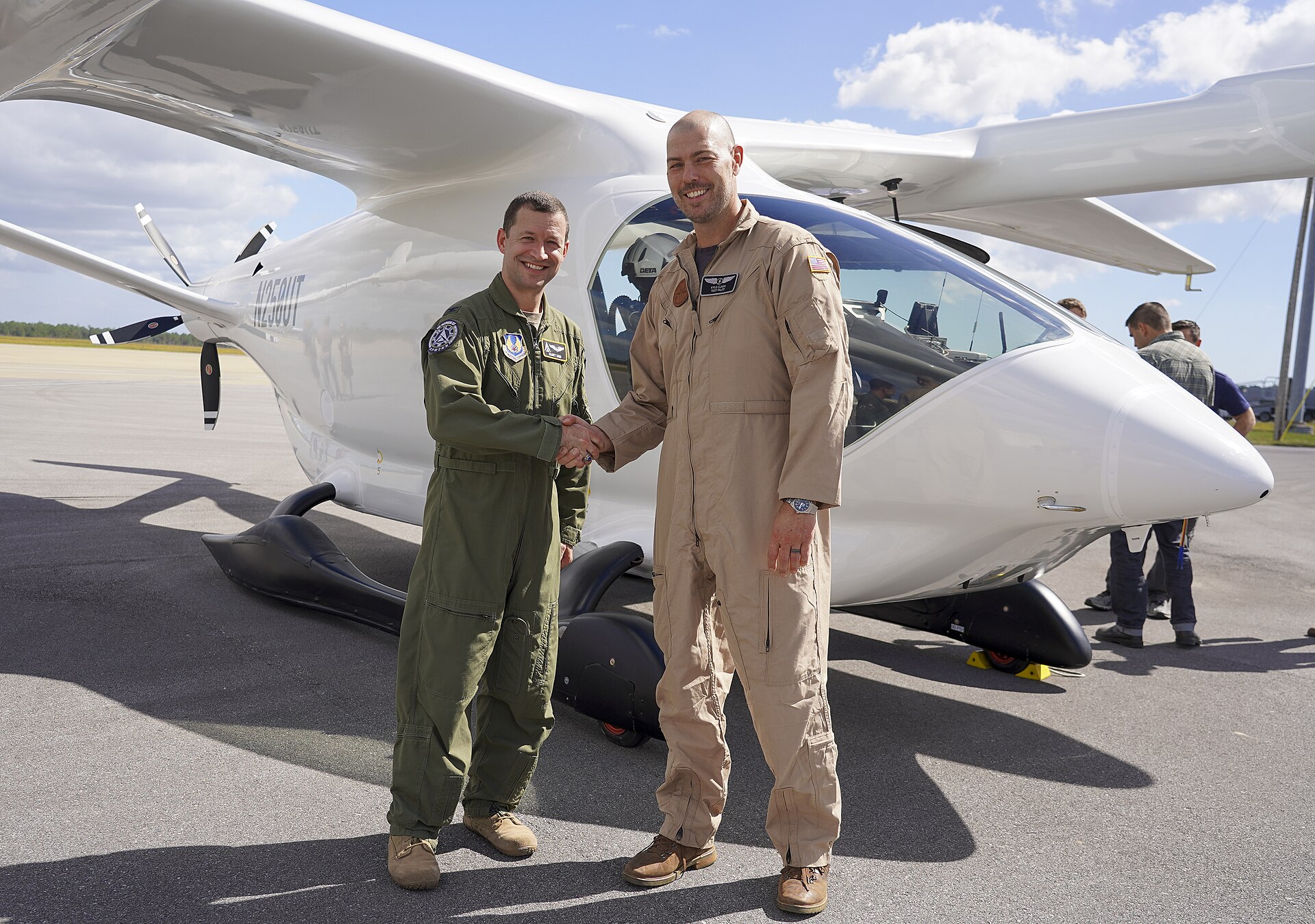
- BETA Technologies was picked for the most programs. BETA said it was selected for seven of the eight eIPP launch programs, more than any other electric aircraft developer. It plans cargo and medical logistics with its ALIA aircraft, starting with conventional takeoff and landing (BETA press release, March 9, 2026).
The math of a flying car
A car only has to push itself forward. A vertical-takeoff aircraft first has to hold its whole weight up on air. Four short equations show why that is hard, and why designers lift off on rotors and then cruise on wings. The numbers below are a worked example for an imaginary 2,000 kg aircraft. They are not any company’s published figures.
Advertisement
1. Thrust to hover
T = m · g
With m = 2,000 kg and g = 9.81 m/s², the rotors must push down about 19.6 kN, about the weight of a mid-size SUV, without any help from wings.
2. Power to hover (momentum theory)
Pideal = T3/2 ÷ √(2ρA)
ρ is air density (1.225 kg/m³ at sea level) and A is the total area swept by the rotors. With 30 m² of rotor disk, the ideal answer is about 320 kW. Real rotors lose some of that. Dividing by a typical efficiency (“figure of merit”) of 0.7 gives roughly 460 kW, about the output of several family cars at full throttle. Bigger rotor area means less power, which is why these aircraft have so many propellers.
3. Why they switch to wings
L = ½ ρ v² S CL
At 150 mph (67 m/s), a wing of about 14 m² with a lift coefficient of 0.5 carries the same 19.6 kN. The power then falls to weight × speed ÷ lift-to-drag ratio. With a lift-to-drag ratio of 10 and 85% drivetrain efficiency, cruise needs about 155 kW, a third of the hover figure.
Advertisement
4. The battery budget for a 25-mile hop
E = Pcruise · tcruise + Phover · thover
Ten minutes of cruise at 155 kW is about 26 kWh. Two minutes of hovering at 460 kW for takeoff and landing adds about 15 kWh, for roughly 41 kWh plus reserves. At 250 Wh per kilogram of battery, that energy alone weighs about 165 kg. This is why short hops, fast charging and lighter batteries decide the business case.
Try it yourself: open Tools → Flight in the bar at the bottom of this page. Change the mass, rotor area or air density and the hover equations update as you type. Tools also has a trip-cost calculator comparing gas and electric, plus loan, savings and equation solvers.
What it means for Massachusetts
None of the eIPP projects named so far are in Massachusetts. The Port Authority of New York and New Jersey’s application covers operations across New England, according to Joby’s March 9, 2026 announcement. For Boston-area businesses, the near-term effects are likely to show up first in cargo and medical logistics, the work BETA and its partners are targeting. Passenger air taxis come after that. Watch for three things: FAA “for credit” test flights, the first type certificate, and local vertiport and noise rules.
What to watch next
- Whether Joby or Archer receives an FAA type certificate. Neither has one yet.
- More eIPP flights in the other participating states, and the data the FAA says it is collecting from them.
- Start dates for Archer’s Texas network, which it has not announced.
Sources
- FAA: The eIPP: What You Need to Know (fact sheet)
- Joby Aviation, March 9, 2026: selection for eIPP
- Joby Aviation, March 11, 2026: first FAA-conforming aircraft takes flight
- Joby Aviation Q2 2026 shareholder letter (SEC filing), Aug. 5, 2026
- Hillwood, Sept. 10, 2026: Joby launches eIPP flights in Texas
- AIAA, Oct. 23, 2026: Archer announces eVTOL air taxi services for Texas Triangle
- BETA Technologies, March 9, 2026: eIPP selection
Photos: U.S. Air Force photos by Harlan Huntington (Joby S4, Edwards Air Force Base, Sept. 20, 2023) and Jennifer Bryant (BETA ALIA, Duke Field, Oct. 26, 2023), both public domain via Wikimedia Commons. The worked example uses textbook physics and round, illustrative inputs. It does not describe any company’s aircraft. This article is for information only and is not investment advice.

Technology
Before the First Nor’easter: A Tech Readiness Checklist for Small Businesses
Power outages and storms can knock a small business offline. A practical October checklist for backups, internet, phones and point-of-sale systems.


Technology
What Actually Happens When You Ask an AI Chatbot a Question
From tokens to probabilities, a plain-language look at how large language models generate answers, and why that explains both their strengths and mistakes.




Write a Small-Business Case Study Without Unverifiable Results

Banyan Won’t Reopen and Wahlburgers Leaves Fenway: A Week of Goodbyes in Boston Dining

Your Holiday Hours Belong in Four Places, Not One

Making a Music Video as an Independent Artist: Concept, Budget and Shoot Day

Building Something Bigger: The Future of Boston Made Pets Is Under Construction

The Future of Pet Care: Exploring Smart Dog Wearables and Innovative Pet Tech
-

 Boston Made Stories4 weeks ago
The Eras of Taylor Swift: A Field Guide for the Rest of Us
-

 Economy3 weeks ago
Proposition 2½, Explained: How Property Taxes Work in Massachusetts Communities
-

 Service2 weeks ago
Five Signals Your Website Needs an Operating System, Not Another Redesign
-

 Corporate News4 weeks ago
Now Live: DanielStricklandMusic.com Brings Daniel Strickland’s Music, Shows and Bookings Into One Place
-

 Boston Made Stories3 weeks ago
Countdown to 20: The Newsroom’s Ten-Day Celebration of Taylor Swift’s Debut Album
-

 Economy4 weeks ago
Fed Minutes Keep Another Rate Hike on the Table as Inflation Stays Stubborn
-

 Boston Made Stories3 weeks ago
The Bluebird Night: How a Teenage Songwriter Talked Her Way Into Nashville
-

 Boston Made Stories3 weeks ago
Track by Track: Inside the 11 Songs of Taylor Swift’s Debut Album